# What is dMeet
dMeet is a video meeting app with direct calls, private chats and built-in AI: meeting summaries, live translation and search across your past meetings. It works in your browser and on iPhone and Android.
### What you can do
| Feature | What it does |
| ----------------------------------------------------------------------------- | ------------------------------------------------------------------- |
| [Meetings](https://docs.dmeet.org/meetings/start-a-meeting) | Host and join meetings for up to 300 people, depending on your plan |
| [Direct calls](https://docs.dmeet.org/calls-and-chats/direct-calls) | Call someone one-on-one, end-to-end encrypted by default |
| [Private chats](https://docs.dmeet.org/calls-and-chats/private-chats) | Send end-to-end encrypted one-on-one messages |
| [Meeting recording](https://docs.dmeet.org/meetings/record-a-meeting) | Record a meeting and watch it later from your history |
| [Waiting room](https://docs.dmeet.org/meetings/waiting-room) | Approve guests before they join |
| [Booking page](https://docs.dmeet.org/scheduling/booking-page) | Let people book time with you from one link |
| [AI Summary](https://docs.dmeet.org/ai-features/ai-summary) | Get a recap with key topics, decisions and action items |
| [AI Voice Translator](https://docs.dmeet.org/ai-features/ai-voice-translator) | Read what others say in your language, in 32 languages |
| [AI Memory](https://docs.dmeet.org/ai-features/ai-memory) | Ask questions about your past meetings |
| [Team Workspace](https://docs.dmeet.org/teams/team-workspace) | Share meeting history and AI credits with your team |
### Privacy
* 1:1 chats and direct calls are end-to-end encrypted. Group meetings are encrypted in transit.
* AI features run on dMeet's own self-hosted models. Your meeting content is not sent to third-party AI providers and is never used to train AI/ML models.
* dMeet runs on the decentralized [dTelecom](https://www.dtelecom.org/) network, with no central media servers.
More in [Privacy & Security](https://docs.dmeet.org/account/privacy-and-security).
### Where dMeet works
On a computer in any modern browser, in the iPhone and Android apps, and in a phone's browser when you join by link. The interface is available in English and Arabic. See [Use dMeet on web, iPhone and Android](https://docs.dmeet.org/get-started/web-iphone-and-android).
### Start here
* [Create your account](https://docs.dmeet.org/get-started/create-your-account)
* [Start a meeting](https://docs.dmeet.org/meetings/start-a-meeting)
* [Join a meeting by link](https://docs.dmeet.org/meetings/join-a-meeting)
* [Plans and limits](https://docs.dmeet.org/plans-and-billing/plans-and-limits)
# Create your account
You need an account to host longer meetings, make direct calls, use private chats and keep your meeting history. Joining a meeting by link doesn't need an account.
### Without an account vs a free account
| What you can do | Without an account | Free account |
| -------------------------------------- | ---------------------------------------------------- | ---------------------------------------- |
| Join meetings by link | Yes | Yes |
| Host a meeting | Up to 5 participants including you, up to 45 minutes | Up to 100 participants, up to 60 minutes |
| Direct calls and private chats | No | Yes |
| Meeting history, AI Summary, AI Memory | No | Yes, with 30 AI credits per month |
| Booking page | No | 1 meeting type |
See [Plans and limits](https://docs.dmeet.org/plans-and-billing/plans-and-limits) for paid plans.
### Ways to sign in
Email with a one-time code, Google, Apple, X (Twitter), Discord or a crypto wallet.
### Sign in with email
1. Tap **Sign in** in the top-right corner.
2. Enter your email address and tap **Submit**.
3. Enter the code from the email you receive.
{% hint style="info" %}
**Didn't get the code?** Check your Spam folder, make sure the address is spelled correctly and request a new code. If it still doesn't arrive, write to .
{% endhint %}
### Your wallet
When you create an account, dMeet automatically creates a Solana wallet linked to it. You can use a crypto wallet to sign in. See [Your profile](https://docs.dmeet.org/account/your-profile).
### Next step
Replace the name and avatar dMeet generated for you, so others recognize you in meetings. See [Your profile](https://docs.dmeet.org/account/your-profile).
# Use dMeet on web, iPhone and Android
dMeet works on a computer in any modern browser, in the iPhone and Android apps, and in a phone's browser when you join by link.
### Get the app
* [dMeet on the App Store](https://apps.apple.com/us/app/dmeet/id6755107690)
* [dMeet on Google Play](https://play.google.com/store/apps/details?id=com.dtele)
On a computer you can also tap your profile picture, choose **Download App** and scan the QR code with your phone.
### What works where
| Feature | Computer | Phone browser | iPhone and Android apps |
| ----------------------------- | -------- | ------------------------- | ----------------------- |
| Join a meeting by link | Yes | Yes, no account needed | Yes |
| Screen sharing | Yes | No | No |
| Booking pages | Yes | Yes | Yes |
| Buy Pro or Business | Yes | Yes, at dmeet.org/billing | Yes, in the app |
| Create and manage a Workspace | Yes | Yes, at dmeet.org/billing | No |
| Incoming call notifications | Yes | No | Yes |
### Notifications
When you first sign in to the app, dMeet asks to send notifications. Turn them on so you don't miss calls. You can also turn them on later in your phone's settings.
### Languages
The dMeet interface is available in English and Arabic on a computer and in the iPhone and Android apps.
# Join from your phone's browser
If the dMeet app isn't installed on your phone, a meeting link opens in your phone's browser, and you can join without creating an account.
### Join a meeting from the browser
1. Open the meeting link on your phone.
2. Choose **Use camera and microphone** or **Use microphone only**, then allow access when the browser asks.
3. Check your name. dMeet fills in a name for you; to change it, tap the pencil next to it.
4. Tap **Join meeting**. If the meeting has a waiting room, tap **Ask to join** and wait until the host lets you in.
{% columns %}
{% column %}
{% endcolumn %}
{% column %}
{% endcolumn %}
{% endcolumns %}
### What else works in a phone's browser
* **Booking pages.** Book time with someone from their booking page, with no app and no account. See [Your booking page](https://docs.dmeet.org/scheduling/booking-page).
* **Subscription and Workspace.** Open dmeet.org/billing to manage your plan or create and manage a Workspace. See [Payments and cancellation](https://docs.dmeet.org/plans-and-billing/payments-and-cancellation).
{% hint style="info" %}
Screen sharing, virtual backgrounds and picture-in-picture aren't available in a phone's browser. Use the iPhone or Android app or a computer for them.
{% endhint %}
# Start a meeting
You can start a meeting right now, schedule it for later, or let people book time with you through your [booking page](https://docs.dmeet.org/scheduling/booking-page).
### Who can use it
Anyone, including people without an account. Without an account, a meeting can have up to 5 participants including you and last up to 45 minutes. With a free account, up to 100 participants and 60 minutes. Paid plans remove the time limit. See [Plans and limits](https://docs.dmeet.org/plans-and-billing/plans-and-limits).
### Start a meeting now
On the **Home** screen, tap **Create a Meet**.
The first time, dMeet asks whether others should hear and see you. Choose **Use camera and microphone** or **Use microphone only**, then allow access when the browser asks.
On the preview screen:
1. Choose whether to join with your camera and microphone on. On a computer, tap the arrow next to each button to pick a device.
2. Check your name and the room name that others will see.
3. In the app, choose the Workspace for the meeting.
4. Tap **Start meeting** (**Start** in the app).
{% columns %}
{% column width="33.33333333333333%" %}
{% endcolumn %}
{% column width="66.66666666666667%" %}
{% endcolumn %}
{% endcolumns %}
When the meeting starts, the **Your meeting's ready** card shows the meeting link. Tap **Share Invite** to send it, or copy the link.
### Meeting settings
Tap **···** on the preview screen, or in the toolbar during the meeting.
| Setting | What it does |
| ----------------------------------------------------------------------- | ------------------------------------------------------------------------ |
| [AI summary](https://docs.dmeet.org/ai-features/ai-summary) | Records a summary and full transcription of the meeting |
| [AI Translator](https://docs.dmeet.org/ai-features/ai-voice-translator) | Translates speech into your language; pick the language below the switch |
| Play join sound for host | Plays a sound when someone joins |
| Auto-mute participants on join | New participants join with their microphone off |
| [Waiting room](https://docs.dmeet.org/meetings/waiting-room) | Guests wait until you let them in |
| Noise cancellation | Filters background noise from your microphone, on paid plans |
You can change every setting before and during the meeting. **AI summary is on by default** and uses AI credits, so turn it off if you don't need it. Once AI summary is on during a meeting, it stays on until the meeting ends.
### Other ways to start
* [Schedule a meeting](https://docs.dmeet.org/meetings/schedule-a-meeting) for a set date and time and invite people by email.
* Share your [booking page](https://docs.dmeet.org/scheduling/booking-page) so people pick a time themselves.
* To call one person, use a [direct call](https://docs.dmeet.org/calls-and-chats/direct-calls).
# Join a meeting by link
To join a meeting, open the link the host sent you. You don't need an account.
### Join
1. Open the meeting link.
2. On the preview screen, turn your camera and microphone on or off and enter your name.
3. Tap **Join meeting**.
dMeet asks for permission to use your camera and microphone the first time.
### If you see "Ask to join"
The meeting has a [waiting room](https://docs.dmeet.org/meetings/waiting-room). Tap **Ask to join** and wait: the host lets you in. If the host hasn't joined yet, the meeting starts when they arrive.
{% columns %}
{% column %}
{% endcolumn %}
{% column %}
{% endcolumn %}
{% endcolumns %}
### On your phone
If the dMeet app isn't installed, the link opens in your phone's browser and you can join there. See [Join from your phone's browser](https://docs.dmeet.org/get-started/join-from-your-phones-browser).
### Can't connect?
Check that your browser is allowed to use the camera and microphone for dmeet.org, then reload the page. More fixes in [FAQ and support](https://docs.dmeet.org/help/faq).
### Why create an account
Joining as a guest works, but with an account your meeting history and AI summaries of the meetings you attend stay with you, and you can make direct calls and send private chats. See [Create your account](https://docs.dmeet.org/get-started/create-your-account).
# Schedule a meeting
Schedule a meeting when you need people to show up at a set time. dMeet emails the invitations and adds the meeting to the invitees' Meetings section.
### Who can use it
Anyone signed in to dMeet. Invitations are sent by email.
### Schedule a meeting
1. On the **Home** screen tap **Schedule a Meet**, or open **Meetings** and tap **Schedule a meeting**.
2. Fill in the details:
* **Meeting title**, so people know what it's about
* **Date**, only in the future
* **Time**, in the time zone you choose (your current one by default)
* **Duration**
* **Participants**, added by email. Add at least one person; you can't invite yourself
3. Tap **Schedule a meeting**.
### Inviting participants
Each person you invite gets an email invitation. If they already use dMeet, the meeting also appears in their **Meetings** section under **Upcoming**.
You get an email too, as the host. Each email has buttons to add the meeting to Google Calendar, Outlook or Apple Calendar, or to download an ICS file. If you've connected Google Calendar in dMeet, the meeting is added to it automatically.
{% hint style="success" %}
If someone doesn't have a dMeet account yet, the meeting appears for them automatically once they sign up with the same email.
{% endhint %}
### Managing a scheduled meeting
As the host, you can:
* Edit the title, date, time or duration
* Add or remove participants
* Cancel the meeting
* Join the meeting
When you change the date, time or duration, every participant gets an update email.
Participants see the meeting details and who else is invited, but can't edit anything. They can decline, so you know not to expect them.
### When the meeting starts
When the meeting starts, everyone invited gets a reminder email. To join, open the meeting in **Meetings** under **Upcoming** and tap **Join meeting**, or use the **Join meeting** button in the invitation email.
### Team meetings
If you're in a [Team Workspace](https://docs.dmeet.org/teams/team-workspace), a meeting you schedule in the Workspace becomes a team meeting: its summary and recording belong to the Workspace.
### Good to know
* Scheduled meetings have a [waiting room](https://docs.dmeet.org/meetings/waiting-room) on by default. You can turn it off in the meeting settings.
* To prevent spam, a host can send up to **30 meeting invitations per day**. If you reach the limit, try again the next day.
* If several participants report a host for unwanted invitations, the host may lose the ability to schedule meetings.
* If a participant blocks a host, the host can't schedule meetings with them, call them or message them.
Want people to pick a time themselves? Use your [booking page](https://docs.dmeet.org/scheduling/booking-page).
# During a meeting
Everything you can do once you're in a meeting. If you're the host, see also [Host controls](https://docs.dmeet.org/meetings/host-controls).
### Camera and microphone
The camera and microphone buttons are at the bottom of the screen. Tap the arrow next to a button to choose a different device.
The host can mute you or turn off your video. Only you can turn them back on.
### Participants
Tap the **Participants** icon in the bottom-right corner to see everyone in the meeting. There are three roles:
* **Host:** the person who started the meeting. Has full control.
* **Co-host:** a participant the host promoted. Has the same moderation rights as the host.
* **Participant:** everyone else.
### Meeting settings
Tap **···** in the bottom toolbar to open meeting settings. You can change them without leaving the meeting:
* **AI summary:** transcription and a written summary after the meeting. See [AI Summary](https://docs.dmeet.org/ai-features/ai-summary)
* **AI Translator:** translated captions in the language you pick. See [AI Voice Translator](https://docs.dmeet.org/ai-features/ai-voice-translator)
* **Play join sound for host:** a chime when someone joins
* **Auto-mute participants on join:** new participants join muted
* **Waiting room:** you let people in yourself. See [Waiting room](https://docs.dmeet.org/meetings/waiting-room)
* **Noise cancellation:** filters out background noise. Available on paid plans
* **Add to Favorites:** keep the meeting for quick access
* **Share Link:** copy the meeting link
The same settings are available before you join.
### Share your screen
Tap the **Share screen** button to show your whole screen, a window or a browser tab.

{% hint style="info" %}
Screen sharing works in a browser on a computer. It isn't available in the iPhone and Android apps.
{% endhint %}
### Reactions and raise hand
* **Reactions:** tap the smiley button and pick an emoji. It appears on your video for everyone.
* **Raise hand:** tap the hand button to ask to speak. Raised hands are listed in **Participants** from first to last.
### Chat and transcription
Tap the chat button in the bottom-right corner to message everyone in the meeting. The **Transcription** tab shows what's being said when AI summary is on. See [Meeting chat](https://docs.dmeet.org/meetings/meeting-chat).
### Invite someone
Tap **Copy meeting link** in the top-right corner and send the link to anyone. See [Join a meeting](https://docs.dmeet.org/meetings/join-a-meeting).
### Leave or end the meeting
Tap the red button:
* **Leave meeting:** you leave, and the meeting continues for everyone else.
* **End meeting for all:** the host closes the meeting for everyone.
After the meeting you see its duration, the AI credits spent, the number of participants and the Points you earned. You can rate the call quality for 10 extra Points, rejoin, add the meeting to Favorites or upgrade your plan.
# Host controls
Who can do what
| Action | Host | Co-host | Participant |
| ---------------------------------------------------------------------- | ---- | ------- | -------------- |
| Mute a participant or turn off their camera | Yes | Yes | No |
| Remove a participant | Yes | Yes | No |
| Lower raised hands | Yes | Yes | Only their own |
| Pin a chat message | Yes | Yes | No |
| Let people in from the waiting room | Yes | Yes | No |
| Change host settings (AI summary, waiting room, auto-mute, join sound) | Yes | No | No |
| Start or stop a recording | Yes | No | No |
| End the meeting for everyone | Yes | No | No |
### Make someone a co-host
Open the participants list, tap **···** next to the person and choose **Make co-host**. To take the role back, choose **Remove co-host**. A co-host can't mute, turn off the camera of or remove the host.
### Mute or turn off a camera
Open the participants list, tap **···** next to the person and choose **Mute** or **Disable video**. These options appear only while the person's microphone or camera is on. Only the participant can turn their microphone or camera back on.
### Remove a participant
Open the participants list, tap **···** next to the person and choose **Kick out**.
### Raised hands
Raised hands appear as a queue at the top of the participants list, from first to last. Tap the hand icon next to a name to lower that person's hand, or tap **Give up all hands** to lower all of them.
### Host settings
Only the host can change these settings. Open **···** in the toolbar:
* **Auto-mute participants on join:** new participants join with their microphone off.
* **Play join sound for host:** plays a sound when someone joins.
* **Waiting room:** guests wait until you let them in. See [Waiting room](https://docs.dmeet.org/meetings/waiting-room).
* **AI summary:** see [AI Summary](https://docs.dmeet.org/ai-features/ai-summary).
To record, see [Record a meeting](https://docs.dmeet.org/meetings/record-a-meeting).
### End the meeting
Tap the red button at the bottom and choose **Leave meeting** (everyone else stays) or **End meeting for all**.
# Waiting room
With the waiting room on, everyone except the host waits until the host lets them in. Use it when the meeting link may reach people you don't know.
### Who can use it
Hosts on any plan. Guests don't need an account to wait in a waiting room.
### When it's on by default
| How the meeting was created | Waiting room |
| ---------------------------------------------------------------------------------- | ------------ |
| Started right away from Home | Off |
| [Scheduled](https://docs.dmeet.org/meetings/schedule-a-meeting) | On |
| Booked through your [booking page](https://docs.dmeet.org/scheduling/booking-page) | On |
You can change it for any meeting.
### Turn it on or off
Tap **···** on the preview screen or in the toolbar during the meeting, then switch **Waiting room**. A change during the meeting applies only to people who join after it.
### Let people in
When someone is waiting, you see a notice "Waiting to join" with a **View** button.
Open the participants list: people who are waiting are listed under **Waiting**. Tap **Admit** or **Deny** next to a name, or **Admit all**. Tick **Admit everyone automatically** to let in everyone who arrives later in this session.
### What guests see
Instead of **Join meeting**, the preview screen shows **Ask to join**.
After tapping it, the guest sees "Waiting for the host to let you in" and joins automatically once the host admits them.
{% hint style="info" %}
A meeting doesn't start without its host. If guests arrive first, they wait until the host joins.
{% endhint %}
# Meeting chat
The meeting chat is for messages to everyone in the meeting. For one-on-one messages outside meetings, use [private chats](https://docs.dmeet.org/calls-and-chats/private-chats).
Tap the chat button in the bottom-right corner of the meeting to open it.
### What you can do
* Send a message to everyone in the meeting
* Reply to a message: tap and hold on mobile, or hover on a computer
* React with an emoji
* Copy a message
Hosts and co-hosts can pin a message. Only the latest pinned message is kept.
The meeting chat isn't saved after the meeting ends, and if you leave and rejoin, earlier messages aren't shown again. To keep a record of the conversation, use [AI Summary](https://docs.dmeet.org/ai-features/ai-summary).
### Transcription tab
Next to the chat is the **Transcription** tab. It shows a live transcript of the conversation. With AI Translator on, it also shows what others say translated into your language. See [AI Voice Translator](https://docs.dmeet.org/ai-features/ai-voice-translator).
# Record a meeting
The host can record a meeting. The recording is saved to the meeting card in your history, where you can watch it, share it or download it.
### Who can use it
* Only the host can start and stop a recording.
* Recording works in meetings, not in [direct calls](https://docs.dmeet.org/calls-and-chats/direct-calls).
* Recording is available on paid plans. Each plan includes storage for recordings:
| Plan | Recording storage |
| ---------- | ------------------------------------ |
| Free | Not available |
| Pro | 20 GB |
| Business | 40 GB |
| Team | 250 GB, +50 GB for each seat above 5 |
| Enterprise | Custom |
### Start a recording
1. In the meeting toolbar, click the record button (the red dot).
2. Click **Start** to confirm. Everyone in the meeting is notified that it's being recorded. At least one person in the meeting needs the camera or microphone on. Otherwise you see "Couldn't start recording. Try again."
While the meeting is being recorded, a **REC** badge appears next to the meeting timer, and the record button turns into recording controls.
{% hint style="info" %}
You are responsible for getting consent to record from participants where the law requires it. See the [Terms of Service](https://dmeet.org/terms-of-service).
{% endhint %}
### Pause, resume or stop
Use the recording controls in the toolbar:
* **Pause** stops recording for a while. The badge changes to **PAUSED**. Click play to continue.
* **Stop** ends the recording. You can start a new one later in the same meeting.
### Find your recording
When the meeting ends, the meeting card shows a **Recording** section. You can also open it later from **Meetings → History**. Each recording shows its time, length, size and who can view it.
* **Download** saves the recording to your device.
* The share button opens access settings and the link.
* The **...** menu has **Copy link**, **Change access** and **Delete recording**.
### Who can watch and download
By default, a recording is available to the participants of that meeting. The owner of the recording can change this in **Share recording**:
* **Only me**
* **Participants only**: anyone who was in the meeting
* **Workspace members**: everyone in your team Workspace
* **Anyone with link**
The link opens the recording together with its AI summary and transcript. In a team Workspace, the Workspace Owner can always access recordings made there.
To download a recording, tap **Download** next to it on the meeting card. Downloading requires signing in. People without an account can only watch.
### Storage
You can see how much storage is left in **Plan & Billing**, and in the Plan section of the iPhone and Android apps. To see all recordings in one place, click **Manage recordings** there. You can play or delete each recording.
When your storage is full, you get a notification and new recordings can't start. The meeting itself continues normally. To free space, delete older recordings or move to a plan with more storage.
### Delete a recording
Deleted recordings go to **Trash** for 30 days and are then deleted permanently. Recordings in Trash don't count toward your storage limit. To delete them right away, open **Manage recordings → Trash** and click **Empty trash**. When you delete your account, your personal recordings are deleted too.
# Rooms
A meeting link doesn't expire after the meeting. Reopen the same room whenever you need it, so your weekly team call or class always has one link.
### Who can use it
Anyone signed in to dMeet. Meetings are saved to your history only when you're signed in.
### Reopen a room
1. Open **Meetings** in the top menu.
2. Find the meeting in your history.
3. Open it to start the room again with the same link, or tap **···** next to it and add it to **Favorites**.
4. Share the link again if needed. Participants rejoin at the same address.
When you reopen a room, you're the host again, with all [host controls](https://docs.dmeet.org/meetings/host-controls).
### Rooms or scheduled meetings
* **A room** is a link you reuse whenever you want, without a fixed time. Good for regular informal calls.
* **A** [**scheduled meeting**](https://docs.dmeet.org/meetings/schedule-a-meeting) has a date and time, and participants get email invitations.
### Good to know
* The meeting chat isn't carried over between sessions.
* To keep a record of each session, turn on [AI Summary](https://docs.dmeet.org/ai-features/ai-summary). The summary and full transcription are saved to your meeting history.
* To name a room, tap the pencil next to its name on the preview screen. The name shows in the meeting and in your history; the link stays the same.
# Direct calls
Direct calls are one-on-one audio or video calls with another dMeet user. You don't need to create a meeting or share a link: call the person straight from their profile or your call history.
### Start a call
1. Open the person's profile, or find them in **Calls** or **Chats**.
2. Tap **Audio** or **Video**.
3. The other person gets an incoming call and can accept or decline.
To find someone new, search by their username in **Calls**. See [Contacts and history](https://docs.dmeet.org/calls-and-chats/contacts-and-history).
### Answer a call
When someone calls you in the browser, you see an incoming call screen. In the Android app, you get a notification. On iPhone, a dMeet call comes in on the regular iPhone call screen, like a phone call: tap **Accept** or **Decline**.
{% hint style="info" %}
On iPhone and Android, allow notifications for dMeet so you don't miss calls.
{% endhint %}
### Encryption
Direct calls are end-to-end encrypted by default. The switch is in **Settings → Privacy & Security → Encrypt direct calls (E2EE)**. If either person has it on, the call is end-to-end encrypted for both. Only you and the other person can hear and see the call.
Because the call is end-to-end encrypted, dMeet can't process it. In encrypted direct calls:
* AI Voice Translator isn't available
* AI Summary isn't available, and the call isn't added to AI Memory
* Recording isn't available
If you need these features, start a meeting instead. See [Start a meeting](https://docs.dmeet.org/meetings/start-a-meeting).
### Call length
Direct calls have no time limit on any plan.
### During a call
* Mute or unmute your microphone
* Turn your camera on or off
* Send a reaction
* Open the chat
* Tap ··· for more options
* Tap the AI button to ask AI Memory about your past meetings
* End the call
At the top of the call screen you see the call length, the call type and the **E2EE** badge when the call is end-to-end encrypted.
{% hint style="warning" %}
dMeet isn't a replacement for a phone and can't be used to call emergency services.
{% endhint %}
# Private chats
Private chats let you message someone one-on-one without starting a call. Chats are end-to-end encrypted, so only you and the other person can read them. Not even the dMeet team can see your messages.
### Where your messages are stored
Your chat history is stored on your device, not in the cloud. There are no cloud backups and no central database with your messages.
{% hint style="info" %}
Because history stays on your device, a new device or a cleared browser won't show your old messages.
{% endhint %}
### Open your chats
Open **Chats** in the top menu. You can also start a chat from a person's profile with **Chat**.
### Start a chat
1. Open **Chats** and type a username in **Search by username**.
2. Click the person in the results. The chat opens, and their profile is on the right with **Audio** and **Video** call buttons, **Favorite** and a private **Note**.
3. Type your message and press Enter or click the send button.
You see when the other person is typing. The check marks next to the time show the status of your message.
To report or block someone, or to delete the chat, click **...** at the top of the chat.
### Where new chats appear
When someone messages you for the first time, the chat goes to one of two places:
* **Your chat list**, if you've met before (a shared meeting or call) or the sender has a paid plan
* **Requests**, if you've never crossed paths. Requests keep messages from people you don't know separate from your main list
### What you can do in a chat
* Send text messages. Images and files aren't supported yet
* Edit your own messages within 24 hours of sending
* Delete a message or the whole chat
Replying to a specific message isn't available.
### Connections and notes

#### Connections
Open a person's profile and check **Connections** to see how many times you've met in meetings or calls and your two most recent interactions. It helps you recognize someone before you reply. Connections appear on every profile, not only in chats.
#### Notes
Add a private **Note** to someone's profile, up to 160 characters. Only you can see it. Notes sync across your devices and appear in the chat and in your contacts.
### Block or report
If someone bothers you, open their profile and choose **Block** or **Report**. A blocked person can't message you, call you or invite you to meetings. See [Contacts and history](https://docs.dmeet.org/calls-and-chats/contacts-and-history).
# Contacts and history
Your meetings, calls and contacts are kept in your account, so you can return to a meeting, call someone back or find a person again. History is saved only when you're signed in.
### Meetings
Open **Meetings** in the top menu. The tabs **Upcoming**, **Past** and **Cancelled** show your scheduled meetings. Below them are **Favorite** meetings and your **History** of meetings you hosted or joined.
Open a meeting to see how many times it was held, the total time, the AI credits used and who took part. Below is the history of each session, marked **AI summary** or **No summary**. Open a session to read its summary and full transcript, or watch the recording if it was on. See [AI Summary](https://docs.dmeet.org/ai-features/ai-summary) and [Record a meeting](https://docs.dmeet.org/meetings/record-a-meeting).
You can reopen a past meeting with the same link. See [Rooms](https://docs.dmeet.org/meetings/rooms).
If you're in a [Team Workspace](https://docs.dmeet.org/teams/team-workspace), team meetings are listed in the Workspace history and your personal meetings in your personal history. Only the Workspace Owner and Admins can delete a team meeting for everyone.
### Calls
Open **Calls** to search for someone by **username**. Below the search you see **Suggestions** (people you've been in meetings with), **Favorite** contacts and your call **History**. Call someone back with one tap.
### A person's profile
Tap a person's profile to:
* Start an audio or video call
* Send a message
* Add them to Favorites
* See their profile details, [Connections and your private Note](https://docs.dmeet.org/calls-and-chats/private-chats#connections-and-notes)
* Report or block them
If you block someone, they can't call you, message you or invite you to meetings.
### Manage the lists
Tap **···** next to a meeting or call to add it to **Favorite** or **Delete** it from your history.
# AI Summary
AI Summary turns your meeting into a clear written record: what was discussed, what was decided and who does what next. It also keeps a full transcription of everything that was said.
### Cost
AI Summary uses **2 AI credits per minute** while it's on. With AI Voice Translator on at the same time, it's 3 credits per minute. Only the host's credits are used. See [AI credits](https://docs.dmeet.org/plans-and-billing/ai-credits).
### Turn AI Summary on or off
Only the host can turn AI Summary on or off. **It's on by default** when you create a meeting, so switch it off on the preview screen if you don't need it.
* **Before the meeting:** tap **···** on the preview screen and switch **AI summary**.
* **During the meeting:** tap **···** in the bottom toolbar and switch **AI summary**.
{% hint style="warning" %}
Once AI Summary is on during a meeting, you can't turn it off until the meeting ends.
{% endhint %}
The host can turn on AI Summary and leave. It keeps working until everyone has left or the host returns and ends the meeting.
AI Summary isn't available in end-to-end encrypted [direct calls](https://docs.dmeet.org/calls-and-chats/direct-calls).
### If credits run out
The meeting continues as usual. AI Summary stops, and the summary covers the meeting up to that moment.
### What's in the summary
After the meeting, you get a summary with five sections:
* **Overview:** what the meeting was about
* **Key topics:** the main subjects discussed
* **Notes:** important points from the discussion
* **Decisions:** what was agreed
* **Action items:** tasks, with who is responsible
The summary is written in the language spoken most during the meeting.
### Review and confirm
| Status | What it means |
| -------------- | --------------------------------------------------------------------------- |
| Draft | The summary is ready for the host to review |
| Confirmed | The host confirmed the summary |
| Auto-confirmed | The host did nothing for 1 hour, so the summary was confirmed automatically |
| Edited | The host changed Decisions or Action items |
| Locked | 48 hours have passed and the summary is read-only |
As the host, you can confirm the summary as it is, or edit **Decisions** and **Action items** first. Overview, Key topics and Notes can't be edited. You can edit the summary for 48 hours after the meeting, even after it's confirmed. After that it's locked.
### Who can see it
Only the host and the participants of that meeting can open the summary. A shared link won't open for anyone else.
To share it with someone who wasn't there, tap **Download PDF**.
The PDF has the overview, key topics, notes, decisions, action items, the list of participants and the first lines of the transcript. The full transcript stays in dMeet.
### Find a summary
Right after the meeting, the summary status appears on the screen you see when you leave.
Later, open **Meetings**, find the meeting in **History** and open it. See [Contacts and history](https://docs.dmeet.org/calls-and-chats/contacts-and-history).
### Full transcript
Open the **Full transcript** tab on the summary page to read everything that was said, with the time and the speaker's name.
### Ask questions about past meetings
To find something across many meetings, use [AI Memory](https://docs.dmeet.org/ai-features/ai-memory).
# AI Voice Translator
AI Voice Translator lets people who speak different languages understand each other in a meeting. It turns speech into text and shows a translation on screen, in the language you choose.

{% hint style="info" %}
The translation is shown as text. dMeet doesn't read it aloud.
{% endhint %}
### Cost
AI Voice Translator uses **1 AI credit per minute** while it's on. With AI Summary on at the same time, it's 3 credits per minute. Credits are taken from the balance of the person who turned the translator on. See [AI credits](https://docs.dmeet.org/plans-and-billing/ai-credits).
### Turn it on
Any participant can turn the translator on. Switch on **AI Translator** in the meeting settings: tap **···** on the preview screen before the meeting, or in the bottom toolbar during it.
### Choose your language
Pick the language you speak in the list under the **AI Translator** switch. What others say is translated into this language and shown as text in the transcript. Each person can choose their own language.
dMeet supports 32 languages. See [Supported languages](https://docs.dmeet.org/ai-features/supported-languages).
### Good to know
* Translation works best when one person speaks at a time and the microphone is close.
* AI Voice Translator isn't available in end-to-end encrypted [direct calls](https://docs.dmeet.org/calls-and-chats/direct-calls).
* If credits run out, the meeting continues and translation stops.
# Supported languages
[AI Voice Translator](https://docs.dmeet.org/ai-features/ai-voice-translator) works in 32 languages.
| Languages A to K | Languages L to V |
| ---------------- | ---------------- |
| Arabic | Latvian |
| Bulgarian | Lithuanian |
| Czech | Malay |
| Danish | Norwegian |
| Dutch | Polish |
| English | Portuguese |
| Estonian | Romanian |
| French | Russian |
| German | Slovak |
| Greek | Spanish |
| Hindi | Swedish |
| Hungarian | Thai |
| Indonesian | Turkish |
| Italian | Ukrainian |
| Japanese | Urdu |
| Korean | Vietnamese |
### How languages are used
* **AI Voice Translator** recognizes speech in any of these languages and shows the translation as text in the language you pick (the language you speak).
* **AI Summary** is written in the language spoken most during the meeting.
### dMeet interface language
You can change the language of the dMeet interface in settings. The interface is also available in Arabic, with right-to-left layout.
# AI Memory
AI Memory answers questions about your past meetings. Ask "What did we decide last week?" and get an answer instead of searching through old meetings. In dMeet, AI Memory opens with the **Ask AI** button.
### What it knows
AI Memory uses the [AI Summaries](https://docs.dmeet.org/ai-features/ai-summary) of your meetings. It can tell you when a meeting happened, what it was about, what was decided, which tasks came out of it and what deadlines were set.
* You can ask only about meetings you took part in. If you started a meeting, turned on AI Summary and stepped away, that meeting is included.
* A meeting is included once its summary is ready. Meetings without AI Summary aren't included.
* In a [Team Workspace](https://docs.dmeet.org/teams/team-workspace), the Owner and Admins can ask about all of the Workspace's meetings, including ones they didn't join.
### Ask a question
Open **AI Memory** with the **Ask AI** button in the corner of the screen, on the web or in the app. You can also open it during a meeting to check what was discussed last time.
Try questions like:
* "What decisions were made last week?"
* "What are my team's action items?"
* "What meetings did I have between June 1 and June 7?"
AI Memory understands dates and date ranges. Each answer comes with source cards that link to the meetings and their summaries.
### Cost
Each question costs **10 AI credits**, however many meetings it searches. If nothing related is found, you aren't charged. See [AI credits](https://docs.dmeet.org/plans-and-billing/ai-credits).
### Try it without an account
You can open AI Memory without signing up and try sample questions. The answers are examples, not your real meetings.
# Booking page
A booking page lets other people pick a time to meet with you. Share one link, guests choose a time that works for both of you, and dMeet creates the meeting room. The meeting appears in your **Meetings → Upcoming** with a dMeet link for everyone.
### Set up booking
1. Tap your profile picture and open **Scheduling**.
2. Tap **Set up booking**.
3. Connect your calendar, or tap **Skip for now**.
4. Check your time zone and set your **working hours**: the days and hours when people can book time with you.
5. Create your first **meeting type**: give it a name and a length, then tap **Create**.
6. Copy your booking link and share it.
To change a meeting type later, tap **···** next to it and choose **Edit**. There you can also set the minimum notice before a booking, how many days ahead people can book, and whether the meeting type shows on your profile page. Longer durations, custom hours for one meeting type and letting bookers add guests are available on paid plans.
### Connect your calendar
Connect Google Calendar so dMeet never offers a time when you're busy. Apple Calendar and Outlook are coming soon.
dMeet reads only busy time slots. Event titles and guests are never read or stored. dMeet only writes events it creates itself.
### What guests do
Guests open your link, pick a meeting type and a time, and enter their name, email and time zone. On paid plans, if you turn on **Allow bookers to add guests** for the meeting type, they can also invite extra guests by email, up to the limit of your plan. The person booking isn't counted. Guests don't need a dMeet account. Booking works in any browser, including on a phone.
### Limits by plan
| Plan | Meeting types | Extra guests per booking |
| -------- | ------------- | ------------------------ |
| Free | 1 | None |
| Pro | Unlimited | 3 |
| Business | Unlimited | 5 |
| Team | Unlimited | 10 |
See [Plans and limits](https://docs.dmeet.org/plans-and-billing/plans-and-limits).
### Manage bookings
Booked meetings appear in **Meetings → Upcoming**. Open a meeting to see its details or cancel it. You can block a guest from booking with you again.
To join, open the meeting from Upcoming or use the link from the confirmation. See [Join a meeting](https://docs.dmeet.org/meetings/join-a-meeting).
If you delete your account, all future bookings are cancelled and guests get an email.
# Team Workspace
A Workspace is a shared space for your team on the Team plan. Everyone in it shares one pool of AI credits and recording storage, and team meetings are kept together in one place.
### What a Workspace gives you
* Meetings with up to 300 participants
* A shared pool of AI credits: 2,500 per month, plus 500 for each seat above 5
* Shared recording storage: 250 GB, plus 50 GB for each seat above 5
* Team meeting history in one place
* [AI Memory](https://docs.dmeet.org/ai-features/ai-memory) across all Workspace meetings for the Owner and Admins
* Roles for managing the team. See [Members and roles](https://docs.dmeet.org/teams/members-and-roles)
### Create a Workspace
1. On the web, open **Plan & Billing**, switch to **Team & Enterprise** and click **Start a Team**. You can also tap your profile picture, open the workspace switcher under your name and click **Create a workspace**.
2. Read the note about how a Workspace works and click **Continue**. The Workspace has its own Team subscription, billed separately from your personal plan.
3. Enter the **Workspace name**, choose **Monthly** or **Yearly** billing and set the number of **Seats** (from 5 to 100). The form shows the shared AI credits, recording storage and the total.
4. Click **Continue to payment** and pay on the secure Stripe page. VAT is added there.
5. Invite your team. See [Members and roles](https://docs.dmeet.org/teams/members-and-roles).
You become the Workspace Owner.
{% hint style="info" %}
You manage a Workspace on the web, including in a phone's browser at dmeet.org. The iPhone and Android apps don't have Workspace management.
{% endhint %}
### Switch between personal and team
Your personal account stays separate from the Workspace. Your personal meetings, calls, history, AI Memory and 1:1 chats stay in your personal space and aren't moved into the team.
To switch, tap your profile picture and open the switcher under your name. It lists your **Personal Workspace** and every team Workspace you belong to, with your plan and role in each. The active one is marked with a check, and its name is shown next to your profile picture at the top of the page.
Team meetings use the Workspace's credits and storage; personal meetings use yours. The profile menu shows the credits and storage of the Workspace you're in.
### Rename or delete a Workspace
In the switcher, click the gear icon next to the Workspace. Here the Owner and Admins can change the Workspace name and picture. Only the Owner can delete the Workspace. Deleting removes the Workspace and all of its data for good. If the Owner deletes their dMeet account, the Workspace keeps working until the end of the paid period plus 30 days, and is then deleted automatically.
### Need more than 100 seats?
For 100 seats or more, contact about the Enterprise plan.
# Members and roles
A Workspace has three roles: Owner, Admin and Member. There is one Owner per Workspace.
### What each role can do
| Action | Owner | Admin | Member |
| ------------------------------------------------------------ | ----- | ----------------- | ------------------------- |
| Host and join team meetings | Yes | Yes | Yes |
| Use the shared AI credits and storage | Yes | Yes | Yes |
| See summaries and ask AI Memory about all Workspace meetings | Yes | Yes | Only meetings they joined |
| Manage the shared meeting history | Yes | Yes | No |
| Invite and remove members | Yes | Yes | No |
| Change roles | Yes | Yes, except Owner | No |
| Buy or remove seats, change or cancel the plan | Yes | No | No |
| Delete the Workspace | Yes | No | No |
A Member's meeting summaries are added to the Workspace. The Owner and Admins can see them, and they feed the shared AI Memory.
You can see this list in the app too: in **Plan & Billing**, click the info icon next to **Team members**.
### See who's in the Workspace
Switch to the Workspace and open **Plan & Billing** from your profile menu. **Team members** shows everyone in the Workspace, their role and status, and how many seats are used.
### Invite people
1. In **Plan & Billing**, go to **Team members** and click **Invite**.
2. Enter an email and press Enter. To invite more people at once, click **Add member**.
3. Choose a role for each person: **Admin** or **Member**.
4. Click **Send invites**. Nothing is sent until you click it.
The dialog shows how many seats are still available. Each member takes one seat, and a pending invite holds a seat until it's accepted or removed. If all seats are taken, add seats first. See [Seats and billing](https://docs.dmeet.org/teams/seats-and-billing).
Each person you invite gets an email. They click the button in it, sign in to dMeet and accept the invitation.
### Change a role or remove a member
In **Team members**, open the menu next to a person to change their role or remove them. A removed member keeps their personal account, but loses access to the Workspace and its meetings.
# Seats and billing
The Team plan is paid per seat. One seat is one member of the Workspace.
### Price
| Item | Price | What you get |
| --------------- | ---------------- | -------------------------------------------- |
| Team plan | $74.99 per month | 5 seats, 2,500 AI credits, 250 GB of storage |
| Each extra seat | $14.99 per month | +500 AI credits, +50 GB of storage |
Prices don't include VAT. Tax is added on the Stripe checkout page.
A Workspace can have from 5 to 100 seats. For more, contact about Enterprise.
### Where to manage the Workspace
Switch to the Workspace and open **Plan & Billing** from your profile menu. You see the plan, billing period, next renewal date, seats in use, the shared AI credits and the shared storage.
### Add seats
Only the Owner can buy or remove seats.
1. In **Plan & Billing**, go to **Team members** and click **Buy seats**.
2. Choose how many seats to add.
3. Check the summary and click **Buy**.
The summary shows:
* **Charged now:** the price for the days left in the current billing period (prorated).
* **Credits added now:** extra AI credits for the rest of this period. From the next reset, each seat adds the full 500 credits.
* **From next renewal:** your new monthly price.
New seats are available right away. Pending invites also hold a seat until they're accepted or removed. See [Members and roles](https://docs.dmeet.org/teams/members-and-roles).
### Remove seats
To remove seats, click **Reduce seats** in **Team members**. A Workspace always has at least 5 seats, so this button is unavailable at 5 seats. You can remove only seats you bought with Buy seats, and only free ones: if every seat is taken, remove a member first. Removed seats aren't refunded. They stay active until the end of the paid period and aren't renewed after that. See [Payments and cancellation](https://docs.dmeet.org/plans-and-billing/payments-and-cancellation).
### Shared AI credits
All members use one pool of credits. The menu and **Plan & Billing** show it as **AI credits (shared)**. Credits the Owner buys for the Workspace belong to the Workspace.
To buy more, open **Credits** in **Plan & Billing**. Packs are one-time purchases and the credits don't expire:
| Pack | Price |
| -------------- | ----- |
| 2,000 credits | $8 |
| 10,000 credits | $40 |
| 50,000 credits | $200 |
You can also turn on **Auto-reload** so credits are topped up automatically. See [AI credits](https://docs.dmeet.org/plans-and-billing/ai-credits).
### Shared storage
Recordings of team meetings are stored in the Workspace's shared storage. **Plan & Billing** shows how much is used. Use **Manage recordings** to delete recordings you don't need.
Deleted recordings stay in **Trash** for 30 days and don't count toward your storage limit. To delete them right away, click **Empty trash**. When the storage is full, new recordings can't start. Free up space or move to a plan with more storage.
# Your profile
Your profile is how other people recognize you in meetings, calls and chats. When you sign up, dMeet gives you a random name and avatar, so it's worth updating them first.
### See your profile
On the web, tap your profile picture in the top-right corner. The menu shows your name and username, your Workspace and plan, AI credits and storage, and links to **Profile**, **Scheduling**, **Plan & Billing**, **Settings**, **Rewards** and **Affiliate Program**. In the app, open **Account**.
Your profile also has your QR code and personal share link. See [Share your profile](https://docs.dmeet.org/account/share-your-profile).
### Edit your profile
1. Open **Settings**.
2. Tap **Edit profile** and change what you need: profile picture, display name, username (people can find you by it) and bio.
3. Tap **Save changes**.
### Settings
Below your profile, **Account settings** has:
* **Privacy & Security:** the **Encrypt direct calls (E2EE)** switch. See [Privacy and security](https://docs.dmeet.org/account/privacy-and-security)
* **Linked Account:** the email or account you signed up with
* **Email Notifications**
* **Language** of the interface
* **Embedded Wallets:** your Solana address
* **Delete Account.** See [Delete your account](https://docs.dmeet.org/account/delete-your-account)
You can sign in with email, Google, Apple, X (Twitter) or Discord. In Chrome and other browsers with a wallet extension, you can also sign in with a crypto wallet (MetaMask, Phantom or Solflare).
### Your dMeet wallet
When you sign up, dMeet creates a Solana wallet linked to your account. You don't need to set anything up. To copy your wallet address, tap the copy icon next to **Solana Address** in Settings. You can use the address to receive USDC or other tokens.
For advanced wallet management, use any external crypto wallet you prefer.
# Share your profile
Share your profile link or QR code so people can call you or message you directly, without setting up a meeting.
### Share your profile
1. Tap your avatar in the top-right corner to open your profile.
2. Choose how to share:
* **QR code:** if the person is next to you, let them scan it
* **Copy link** or **Share profile:** send the link in any messenger
When someone opens your link:
* If they have a dMeet account, they see your contact card and can call or message you right away.
* If they don't, they sign up first. It takes a minute.
### Share a meeting link
To invite someone to a meeting you're in, tap the link button in the top-right corner. The link is copied, and you can send it to anyone. See [Join a meeting](https://docs.dmeet.org/meetings/join-a-meeting).
People can join a meeting without an account, but if they sign in they also earn [Points](https://docs.dmeet.org/rewards/points) for the time they spend in meetings.
### Related
* [Direct calls](https://docs.dmeet.org/calls-and-chats/direct-calls)
* [Private chats](https://docs.dmeet.org/calls-and-chats/private-chats)
# Privacy and security
Here's how dMeet protects your calls, chats and data.
### Encryption
| What | How it's protected |
| -------------- | ---------------------------------------------------------------------------------------- |
| Direct calls | End-to-end encrypted by default. Only you and the other person can hear and see the call |
| Private chats | End-to-end encrypted and stored on your device |
| Group meetings | Encrypted in transit |
dMeet runs on a decentralized network with no central media servers.
End-to-end encryption of direct calls is controlled by the **Encrypt direct calls (E2EE)** switch in **Settings → Privacy & Security**. When it's on, AI Translator isn't available in calls.
### Your data and AI
Your meetings, transcriptions and summaries are never used to train AI or machine learning models.
AI features work only when they're turned on. AI Summary, AI Voice Translator and recording aren't available in end-to-end encrypted direct calls. See [Direct calls](https://docs.dmeet.org/calls-and-chats/direct-calls).
### Control who can reach you
* **Waiting room:** decide who joins your meetings. See [Waiting room](https://docs.dmeet.org/meetings/waiting-room).
* **Requests:** messages from people you haven't met go to a separate list. See [Private chats](https://docs.dmeet.org/calls-and-chats/private-chats).
* **Block and report:** a blocked person can't call you, message you or invite you to meetings. See [Contacts and history](https://docs.dmeet.org/calls-and-chats/contacts-and-history).
### Who can see your meetings
Only the host and participants of a meeting can open its summary, transcription and recording. In a Team Workspace, the Owner and Admins can also see team meeting summaries. See [AI Summary](https://docs.dmeet.org/ai-features/ai-summary).
### Learn more
Read the full [Privacy Policy](https://dmeet.org/privacy-policy). Questions about your data: .
# Delete your account
You can delete your dMeet account at any time.
### Before you delete
Deleting your account removes:
* Your profile, username and contacts
* Recordings of meetings you hosted
* Your chats with other people and your direct call history
* Your remaining AI credits and Points
All your future bookings are cancelled, and guests get an email.
Meeting summaries stay available to the other participants of those meetings.
If you have a paid plan, cancel it first so you aren't charged again. Plans bought in the App Store or Google Play are cancelled in your phone's subscription settings. See [Payments and cancellation](https://docs.dmeet.org/plans-and-billing/payments-and-cancellation).
If you own a [Team Workspace](https://docs.dmeet.org/teams/team-workspace), it keeps working until the end of its paid period plus 30 days, and is then deleted automatically.
### Delete your account
1. Open the menu in the top-right corner and go to **Settings**.
2. Scroll down and tap **Delete Account**.
3. Confirm.
### Need help?
Write to . For questions about your personal data, write to .
# Plans and limits
Every dMeet account starts on the Free plan, with no card and no trial period. Paid plans remove the meeting time limit, raise the participant limit and add more AI credits.
### Compare plans
| Feature | Free | Pro | Business | Team | Enterprise |
| ----------------------------------------------- | -------------- | ------------------------------- | ------------------------------- | ------------------------------------------- | ------------- |
| Price | $0 | $9.99/mo | $16.99/mo | $74.99/mo for 5 seats, then $14.99 per seat | Custom |
| Participants per meeting | 100 | 150 | 300 | 300 | Custom |
| Meeting duration | 60 min | Unlimited | Unlimited | Unlimited | Unlimited |
| AI credits per month | 30 | 300 | 680 | 2,500 shared, +500 per extra seat | Custom |
| AI Summary, AI Voice Translator, AI Memory | Yes | Yes | Yes | Yes | Yes |
| Booking page | 1 meeting type | Unlimited types, up to 3 guests | Unlimited types, up to 5 guests | Unlimited types, up to 10 guests | Custom limits |
| Noise cancellation | No | Yes | Yes | Yes | Yes |
| Recording storage | No | 20 GB | 40 GB | 250 GB, +50 GB per extra seat | Custom |
| Shared meeting history, roles and admin console | No | No | No | Yes | Yes |
| SSO/SAML, custom retention, private deployment | No | No | No | No | Yes |
| Points multiplier | x1 | x2 | x3 | x5 | x5 |
| Priority support | No | No | Yes | Yes | Dedicated |
{% hint style="info" %}
Direct one-on-one calls have no time limit on any plan, including Free.
{% endhint %}
You can also host a meeting without an account: up to 5 participants including you, for up to 45 minutes.
### Monthly or yearly
Every paid plan can be billed monthly or yearly. Yearly billing saves 17%.
### Which plan fits you
* **Free:** for trying dMeet and short meetings.
* **Pro:** for regular meetings longer than 60 minutes, with enough AI credits for weekly summaries.
* **Business:** for meetings of up to 300 people and heavier use of AI features. Includes priority support.
* **Team:** for teams of 5 to 100 people. Everyone works in one Workspace with shared meeting history and one pool of AI credits. See [Team Workspace](https://docs.dmeet.org/teams/team-workspace).
* **Enterprise:** for 100+ seats, SSO/SAML, custom data retention or private deployment. Write to or tap **Contact sales** in Plan & Billing.
### Where to change your plan
* **On the web:** tap your profile picture, then **Plan & Billing**.
* **In the iPhone or Android app:** open **Account**, then **Plan**. It shows your current plan, AI credits and recording storage. Payments made in the app are handled by Apple or Google. The apps sell Pro and Business, billed monthly or yearly. App prices can differ from the prices on the web because of Apple and Google fees and local VAT.
* **Team and Workspace** are set up and managed on the web: on a computer at dmeet.org, or in your phone's browser at dmeet.org/billing. The apps don't manage Workspaces.
On your phone, open dmeet.org/billing in the browser and sign in. It works like **Plan & Billing** on a computer: you can manage your Pro or Business plan, create, pay for, edit or cancel a Workspace, invite your team, buy or remove seats, see your billing history, buy AI credits, set up Auto-reload, and manage your recording storage and recordings. Payments there go through Stripe at the prices shown on the web. If you subscribed in the App Store or Google Play, cancel that subscription there before you change your plan on the web.
See also [AI credits](https://docs.dmeet.org/plans-and-billing/ai-credits) and [Payments and cancellation](https://docs.dmeet.org/plans-and-billing/payments-and-cancellation).
# AI credits
AI credits pay for dMeet's AI features. Every plan includes a monthly allowance, and on paid plans you can buy more.
### What each feature costs
| Feature | Cost |
| ------------------------------------------- | -------------------------------------------------------- |
| AI Voice Translator | 1 credit per minute while it's on |
| AI Summary | 2 credits per minute of meeting |
| AI Voice Translator and AI Summary together | 3 credits per minute |
| AI Memory | 10 credits per question, any number of meetings searched |
If AI Memory finds nothing related to your question, you aren't charged.
Example: a 30-minute meeting with AI Summary uses 60 credits. The 30 credits on Free cover about 15 minutes of AI Summary, 30 minutes of translation or 3 AI Memory questions.
### Who pays
AI Summary uses the host's credits. AI Voice Translator uses the credits of the person who turned it on. Joining a meeting where someone else turned on AI features doesn't spend your credits.
In a Workspace, team meetings use the Workspace's shared pool of credits.
### Monthly allowance
| Plan | AI credits per month |
| ---------- | --------------------------------------------------------------- |
| Free | 30 |
| Pro | 300 |
| Business | 680 |
| Team | 2,500 shared by the whole Workspace, +500 for each seat above 5 |
| Enterprise | Custom |
Your allowance resets at the start of each billing period. Unused credits don't carry over.
### Buy more credits
On Pro, Business, Team and Enterprise you can buy extra credits at any time, with no limit on how many.
| Plan | Price per extra credit |
| ---------- | ---------------------- |
| Pro | $0.005 |
| Business | $0.0045 |
| Team | $0.004 |
| Enterprise | Custom |
Extra credits are not available on Free.
{% hint style="success" %}
Extra credits never expire. dMeet always uses your monthly allowance first and only then draws from extra credits.
{% endhint %}
Credits you buy on a personal account stay on your balance if you change or cancel your plan, even on Free. Credits bought for a Workspace belong to the Workspace and are deleted with it.
**Auto-reload.** In **Plan & Billing**, set a threshold and dMeet tops up your balance when you reach it. Auto-reload is off until you turn it on.
### If you run out during a meeting
The meeting continues and nobody is disconnected. AI features stop and you see a notification. If AI Summary was on, the summary covers the meeting up to the moment credits ran out.
### Track your usage
Open **Plan & Billing**. The main bar shows your monthly allowance; below it you see usage by feature: AI Memory, AI Summary and AI Translation.
# Payments and cancellation
How to pay for a plan, change it or cancel it, and where to find your invoices.
### Where you pay
* **On the web:** payments go through Stripe.
* **In the iPhone app:** payments go through Apple.
* **In the Android app:** payments go through Google Play.
Where you subscribe decides where you manage the plan and ask for refunds. A plan bought in the App Store or Google Play is changed and cancelled in your phone's subscription settings. Refunds for app purchases go through Apple or Google; our full refund rules are in the [Terms of Service](https://dmeet.org/terms-of-service). To manage a plan on the web that you bought in an app, cancel it in the App Store or Google Play first.
The apps sell Pro and Business, billed monthly or yearly. App prices can differ from the prices on the web because of Apple and Google fees and local VAT. On the web, including in your phone's browser at dmeet.org/billing, you pay through Stripe at the prices shown on dmeet.org.
### Subscribe in the app
1. Open **Account**, then **Plan**.
2. Choose **Monthly** or **Yearly** and tap **Upgrade** on Pro or Business.
3. Confirm the subscription in the Apple or Google Play payment window.
### Subscribe on the web
1. Tap your profile picture and open **Plan & Billing**.
2. Choose a plan and tap **Upgrade**.
3. Complete the payment on the secure checkout page.
You can pay by card (Visa, Mastercard, Amex and others), with Apple Pay on supported devices, with Link or with Amazon Pay. Card details are handled by Stripe and never stored by dMeet.
Your bank may ask you to confirm the payment with a push notification or SMS. This is standard 3D Secure verification. If a card is declined, you see a message right away and can try again.
### Use a coupon
If you have a coupon code, enter it on the checkout page. Coupons work only when you pay on the web, not in the iPhone or Android app.
1. Tap your profile picture and open **Plan & Billing**. To pay yearly, turn on the yearly billing toggle.
2. On the plan you want, tap **Upgrade**. The secure checkout page opens.
3. Tap **Add promotion code**, enter the code and tap **Apply**.
4. Check the discount. It shows under **Subtotal**, and **Total due today** shows the new amount. Under the price you see what you'll pay once the discount ends.
5. Add a card and complete the payment. A card is needed even if the total is $0, because the plan renews at the regular price after the discount ends.
### Monthly or yearly
Every paid plan can be billed monthly or yearly. Yearly billing saves 17%. Use the toggle in **Plan & Billing**.
### Upgrade
An upgrade starts right away. You pay only the prorated difference for the rest of the current billing period.
### Downgrade or cancel
A downgrade or cancellation takes effect at the end of the current billing period. Until then you keep everything in your plan. Unused time isn't refunded.
Before you confirm, dMeet shows what you'll lose: AI credits, participant limits and features.
Changed your mind? Reactivate the plan in **Plan & Billing** before the period ends.
### Invoices
On the web, open **Plan & Billing → Recent invoices** to see past payments. Tap **View all invoices** for the full history in Stripe.

To change your payment method, billing address or tax ID, tap **Manage billing**.
For purchases made in the app, receipts come from Apple or Google.
### Team plan
Seats and billing for a Workspace are managed on the web by the Owner. See [Seats and billing](https://docs.dmeet.org/teams/seats-and-billing). On a phone, open dmeet.org/billing in the browser.
### Need help with a payment?
Write to .
# Rewards and Points
Points reward you for using dMeet. You earn them for hosting and joining meetings and for inviting friends. Points decide your place on the Leaderboard.
### See your Points
Tap your profile picture and open **Rewards**. You'll see your total Points, the **Leaderboard**, **How it works?** and your referral link. After each meeting you also see the Points you earned for it.
### How you earn Points
| Activity | Points |
| ------------------------------------- | ------------------------------------------------------ |
| Host a meeting or start a direct call | 40 per minute, when at least one other person is there |
| Join someone else's meeting | 20 per minute |
| Invite friends | 10% of all Points the people you invited earn |
| Rate the call quality after a meeting | 10 |
You need to be signed in to earn Points. Guests who join without an account don't earn them.
### Plan multipliers
Paid plans multiply all the Points you earn, from every source, including referrals.
| Plan | Multiplier |
| ---------- | ---------- |
| Free | x1 |
| Pro | x2 |
| Business | x3 |
| Team | x5 |
| Enterprise | x5 |
Example: an hour-long meeting you host on Pro earns 40 × 60 × 2 = 4,800 Points.
### Leaderboard
The Leaderboard ranks everyone by Points, from highest to lowest. People are shown by their wallet address, and your own place is highlighted at the bottom.
### Invite friends
On the **Rewards** page, tap **Copy referral link** and share it. When someone signs up with it, you get 10% of the Points they earn.
Want to earn money by bringing customers to dMeet? See the [Affiliate program](https://docs.dmeet.org/rewards/earn-with-dmeet).
# Affiliate program
Share dMeet. Earn 50%.
Get 50% recurring commission for 12 months on every customer you refer to dMeet - paid monthly, with a generous 60-day attribution window.
{% hint style="success" %}
[**Join the Program**](https://partners.dmeet.org/)
{% endhint %}
### What you get
{% columns %}
{% column width="83.33333333333334%" %}
💰 **50% commission** - half of every payment your referrals make
{% endcolumn %}
{% column width="16.666666666666657%" %}
{% endcolumn %}
{% endcolumns %}
{% columns %}
{% column width="83.33333333333334%" %}
📅 **12 months recurring** - paid monthly for a full year per referral
{% endcolumn %}
{% column width="16.666666666666657%" %}
{% endcolumn %}
{% endcolumns %}
{% columns %}
{% column width="83.33333333333334%" %}
🍪 **60-day cookie** - generous attribution window on every referral link
{% endcolumn %}
{% column width="16.666666666666657%" %}
{% endcolumn %}
{% endcolumns %}
{% columns %}
{% column width="83.33333333333334%" %}
💸 **Monthly payouts** - NET-15, paid within 15 days of month end
{% endcolumn %}
{% column width="16.666666666666657%" %}
{% endcolumn %}
{% endcolumns %}
### How it works
{% stepper %}
{% step %}
### **Sign up**
Create your free affiliate account and get your unique referral link.
{% endstep %}
{% step %}
### **Share**
Add your link to blog posts, videos, newsletters, and social channels.
{% endstep %}
{% step %}
### **Earn**
Get 50% of every payment for 12 months when someone subscribes through your link.
{% endstep %}
{% endstepper %}
### Payouts & payment methods
We pay out monthly on **NET-15** terms - last month's earnings hit your account within 15 days after month end.
{% hint style="info" %}
Minimum payout is **$50**. Balances below this roll over to the next month until you cross the threshold.
{% endhint %}
Choose the payment method that works best for you:
* PayPal
* Wire / SWIFT
* Wise
* Local bank transfer
* Crypto
### FAQ
How does the 12-month period work?
The 12 months start from your referral's first successful payment. You earn 50% on every subscription payment they make during that window. After 12 months, commissions end — but the customer stays with dMeet.
What counts as a qualified referral?
A new dMeet customer who signs up through your referral link within the 60-day cookie window and makes a paid subscription. Existing customers and self-referrals are not eligible.
When and how do I get paid?
Monthly, on NET-15 terms - within 15 days after month end. Minimum payout is $50; balances below roll over to the next month. You can choose PayPal, Wire/SWIFT, Wise, local bank transfer, or crypto (USDT).
Why is there a 30-day approval period?
Commissions are held for 30 days after the qualifying payment to allow time for refunds and chargebacks. After 30 days, commissions are automatically approved and included in the next monthly payout. This protects both you and dMeet - once approved, your commission is yours.
What happens if my referral cancels or asks for a refund?
Commissions are paid only on successful, non-refunded payments. Most refunds occur during the 30-day approval window and are deducted automatically with no impact on you. If a refund occurs after approval, the commission is reversed from your future balance.
Are there restrictions on how I promote dMeet?
We don't restrict channels - blogs, YouTube, podcasts, newsletters, social media, Telegram, Discord, and paid advertising all work great.
We do prohibit:
* Bidding on dMeet brand terms in paid search
* Spam or unsolicited bulk email
* Impersonating dMeet or claiming to be an official channel
* Self-referrals and any form of referral fraud
* Promotion on sites with illegal, adult, or hate content
Can I join if I'm a dMeet customer?
Yes - being a customer is often the best starting point. You just can't refer your own accounts.
### Ready to start earning?
{% hint style="success" %}
[**Join the Program**](https://partners.dmeet.org/)
{% endhint %}
# FAQ and support
Quick answers to common questions. If you don't find yours, write to us at .
### Getting started
**Do I need an account?** No. You can join a meeting from a link without an account, and even host a meeting for up to 5 people and 45 minutes. Sign in to save your history, make direct calls, use AI features and earn Points. See [Create your account](https://docs.dmeet.org/get-started/create-your-account).
**How can I sign in?** With email, Google, Apple, X (Twitter), Discord or a crypto wallet (MetaMask, Phantom or Solflare).
**I didn't get my sign-in code.** Check your spam folder and the spelling of your email, then wait a minute before asking for a new code. Work email can delay automated messages.
### Meetings and calls
**My camera or microphone doesn't work.** Allow dMeet to use the camera and microphone in your browser or phone settings, then reload the page. Check that no other app is using them.
**Can I share my screen on my phone?** No. Screen sharing works in a browser on a computer. See [During a meeting](https://docs.dmeet.org/meetings/during-a-meeting).
**Why did my meeting end after 60 minutes?** Meetings on Free last up to 60 minutes. Paid plans have no limit. Direct calls have no limit on any plan. See [Plans and limits](https://docs.dmeet.org/plans-and-billing/plans-and-limits).
**How many people can join?** Up to 100 on Free, 150 on Pro and 300 on Business and Team.
**The meeting chat disappeared after I rejoined.** Meeting chat isn't saved. For a lasting record, turn on [AI Summary](https://docs.dmeet.org/ai-features/ai-summary) or [record the meeting](https://docs.dmeet.org/meetings/record-a-meeting).
**Why can't I use the translator or AI Summary in a direct call?** Direct calls are end-to-end encrypted, so dMeet can't process them. Start a meeting to use AI features. See [Direct calls](https://docs.dmeet.org/calls-and-chats/direct-calls).
### AI features
**What do AI features cost?** AI Voice Translator uses 1 credit per minute, AI Summary 2 credits per minute and AI Memory 10 credits per question. AI Summary uses the host's credits. AI Voice Translator uses the credits of the person who turned it on. See [AI credits](https://docs.dmeet.org/plans-and-billing/ai-credits).
**My summary covers only part of the meeting.** Credits probably ran out during the meeting. The summary covers the meeting up to that moment. Check your balance in **Plan & Billing**.
**AI Memory found nothing.** AI Memory searches finished summaries of meetings you took part in. If nothing is found, you aren't charged.
### Plans and billing
**Where do I manage my plan?** On the web in **Plan & Billing**, or in the **Plan** section of the app. Plans bought in the App Store or Google Play are managed in your phone's subscription settings. See [Payments and cancellation](https://docs.dmeet.org/plans-and-billing/payments-and-cancellation).
**My recording storage is full.** You get a notification. Delete old recordings or move to a plan with more storage.
### Privacy
**Is dMeet private?** Direct calls and private chats are end-to-end encrypted. Group meetings are encrypted in transit. Your content is never used to train AI or machine learning models. See [Privacy and security](https://docs.dmeet.org/account/privacy-and-security).
### Contact us
| Question | Email |
| ------------------ | ---------------------- |
| Help with dMeet | |
| Your personal data | |
| Affiliate program | |
| Enterprise plan | |
| Terms of Service | |
Business, Team and Enterprise plans include priority support.
# What's new
New features and changes in dMeet.
### October 2026
* **Free plan:** meetings now last up to 60 minutes.
### September 2026
* **Recording:** record meetings and keep them in your recording storage. See [Record a meeting](/meetings/record-a-meeting).
* **Booking page:** let people pick a time with you from your own booking link. See [Booking page](/scheduling/booking-page).
### August 2026
* **Arabic interface** with right-to-left layout.
* **Plan section in the apps:** see your plan, AI credits and storage on iPhone and Android.
### July 2026
* **Team plan and Workspaces:** shared meeting history, roles and one pool of AI credits for teams of 5 to 100. The Owner and Admins can ask AI Memory about all team meetings. See [Team Workspace](/teams/team-workspace).
* **AI Memory:** ask questions about your past meetings with the Ask AI button. See [AI Memory](/ai-features/ai-memory).
* **Direct calls** are end-to-end encrypted. See [Direct calls](/calls-and-chats/direct-calls).
### June 2026
* **Private chats:** message people one-on-one, with end-to-end encryption. See [Private chats](/calls-and-chats/private-chats).
### April 2026
* **Scheduled meetings:** plan a meeting in advance and invite people by email. See [Schedule a meeting](/meetings/schedule-a-meeting).


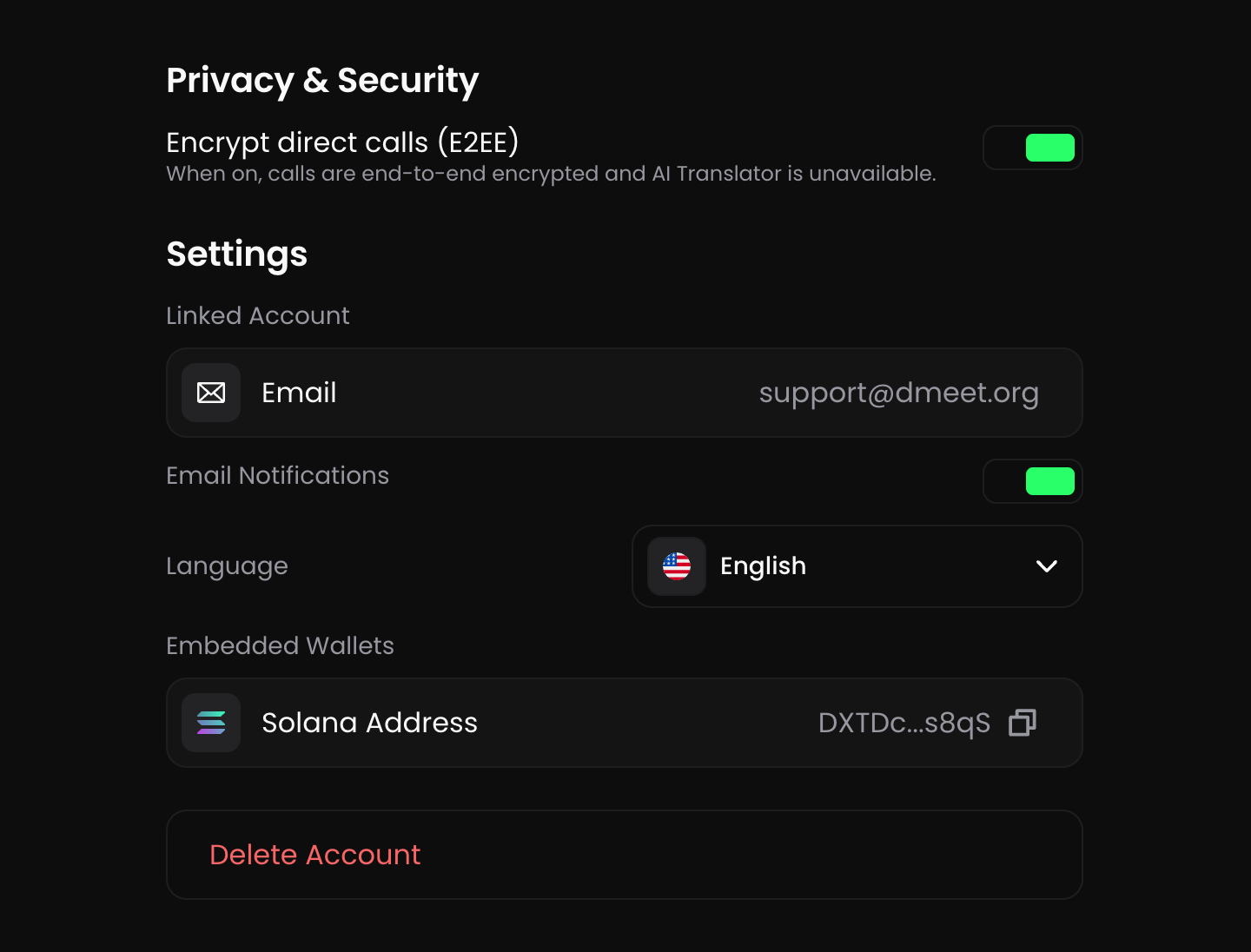


 ### What you can do in a chat
* Send text messages. Images and files aren't supported yet
* Edit your own messages within 24 hours of sending
* Delete a message or the whole chat
Replying to a specific message isn't available.
### Connections and notes

#### Connections
Open a person's profile and check **Connections** to see how many times you've met in meetings or calls and your two most recent interactions. It helps you recognize someone before you reply. Connections appear on every profile, not only in chats.
#### Notes
Add a private **Note** to someone's profile, up to 160 characters. Only you can see it. Notes sync across your devices and appear in the chat and in your contacts.
### Block or report
If someone bothers you, open their profile and choose **Block** or **Report**. A blocked person can't message you, call you or invite you to meetings. See [Contacts and history](https://docs.dmeet.org/calls-and-chats/contacts-and-history).
# Contacts and history
Your meetings, calls and contacts are kept in your account, so you can return to a meeting, call someone back or find a person again. History is saved only when you're signed in.
### Meetings
Open **Meetings** in the top menu. The tabs **Upcoming**, **Past** and **Cancelled** show your scheduled meetings. Below them are **Favorite** meetings and your **History** of meetings you hosted or joined.
### What you can do in a chat
* Send text messages. Images and files aren't supported yet
* Edit your own messages within 24 hours of sending
* Delete a message or the whole chat
Replying to a specific message isn't available.
### Connections and notes

#### Connections
Open a person's profile and check **Connections** to see how many times you've met in meetings or calls and your two most recent interactions. It helps you recognize someone before you reply. Connections appear on every profile, not only in chats.
#### Notes
Add a private **Note** to someone's profile, up to 160 characters. Only you can see it. Notes sync across your devices and appear in the chat and in your contacts.
### Block or report
If someone bothers you, open their profile and choose **Block** or **Report**. A blocked person can't message you, call you or invite you to meetings. See [Contacts and history](https://docs.dmeet.org/calls-and-chats/contacts-and-history).
# Contacts and history
Your meetings, calls and contacts are kept in your account, so you can return to a meeting, call someone back or find a person again. History is saved only when you're signed in.
### Meetings
Open **Meetings** in the top menu. The tabs **Upcoming**, **Past** and **Cancelled** show your scheduled meetings. Below them are **Favorite** meetings and your **History** of meetings you hosted or joined.


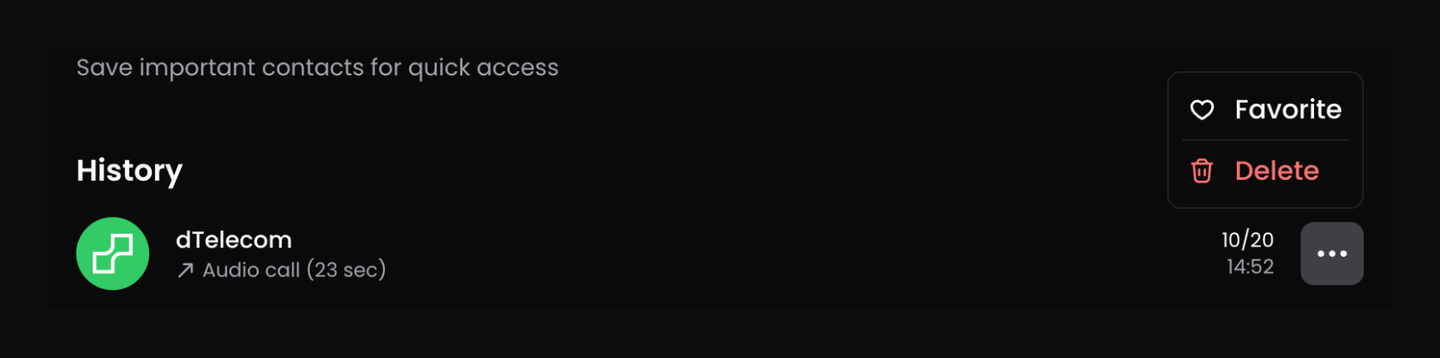
 If you block someone, they can't call you, message you or invite you to meetings.
### Manage the lists
Tap **···** next to a meeting or call to add it to **Favorite** or **Delete** it from your history.
# AI Summary
AI Summary turns your meeting into a clear written record: what was discussed, what was decided and who does what next. It also keeps a full transcription of everything that was said.
### Cost
AI Summary uses **2 AI credits per minute** while it's on. With AI Voice Translator on at the same time, it's 3 credits per minute. Only the host's credits are used. See [AI credits](https://docs.dmeet.org/plans-and-billing/ai-credits).
### Turn AI Summary on or off
Only the host can turn AI Summary on or off. **It's on by default** when you create a meeting, so switch it off on the preview screen if you don't need it.
* **Before the meeting:** tap **···** on the preview screen and switch **AI summary**.
* **During the meeting:** tap **···** in the bottom toolbar and switch **AI summary**.
If you block someone, they can't call you, message you or invite you to meetings.
### Manage the lists
Tap **···** next to a meeting or call to add it to **Favorite** or **Delete** it from your history.
# AI Summary
AI Summary turns your meeting into a clear written record: what was discussed, what was decided and who does what next. It also keeps a full transcription of everything that was said.
### Cost
AI Summary uses **2 AI credits per minute** while it's on. With AI Voice Translator on at the same time, it's 3 credits per minute. Only the host's credits are used. See [AI credits](https://docs.dmeet.org/plans-and-billing/ai-credits).
### Turn AI Summary on or off
Only the host can turn AI Summary on or off. **It's on by default** when you create a meeting, so switch it off on the preview screen if you don't need it.
* **Before the meeting:** tap **···** on the preview screen and switch **AI summary**.
* **During the meeting:** tap **···** in the bottom toolbar and switch **AI summary**.


 ### What it knows
AI Memory uses the [AI Summaries](https://docs.dmeet.org/ai-features/ai-summary) of your meetings. It can tell you when a meeting happened, what it was about, what was decided, which tasks came out of it and what deadlines were set.
* You can ask only about meetings you took part in. If you started a meeting, turned on AI Summary and stepped away, that meeting is included.
* A meeting is included once its summary is ready. Meetings without AI Summary aren't included.
* In a [Team Workspace](https://docs.dmeet.org/teams/team-workspace), the Owner and Admins can ask about all of the Workspace's meetings, including ones they didn't join.
### Ask a question
Open **AI Memory** with the **Ask AI** button in the corner of the screen, on the web or in the app. You can also open it during a meeting to check what was discussed last time.
Try questions like:
* "What decisions were made last week?"
* "What are my team's action items?"
* "What meetings did I have between June 1 and June 7?"
AI Memory understands dates and date ranges. Each answer comes with source cards that link to the meetings and their summaries.
### What it knows
AI Memory uses the [AI Summaries](https://docs.dmeet.org/ai-features/ai-summary) of your meetings. It can tell you when a meeting happened, what it was about, what was decided, which tasks came out of it and what deadlines were set.
* You can ask only about meetings you took part in. If you started a meeting, turned on AI Summary and stepped away, that meeting is included.
* A meeting is included once its summary is ready. Meetings without AI Summary aren't included.
* In a [Team Workspace](https://docs.dmeet.org/teams/team-workspace), the Owner and Admins can ask about all of the Workspace's meetings, including ones they didn't join.
### Ask a question
Open **AI Memory** with the **Ask AI** button in the corner of the screen, on the web or in the app. You can also open it during a meeting to check what was discussed last time.
Try questions like:
* "What decisions were made last week?"
* "What are my team's action items?"
* "What meetings did I have between June 1 and June 7?"
AI Memory understands dates and date ranges. Each answer comes with source cards that link to the meetings and their summaries.


 For advanced wallet management, use any external crypto wallet you prefer.
# Share your profile
Share your profile link or QR code so people can call you or message you directly, without setting up a meeting.
### Share your profile
1. Tap your avatar in the top-right corner to open your profile.
2. Choose how to share:
* **QR code:** if the person is next to you, let them scan it
* **Copy link** or **Share profile:** send the link in any messenger
For advanced wallet management, use any external crypto wallet you prefer.
# Share your profile
Share your profile link or QR code so people can call you or message you directly, without setting up a meeting.
### Share your profile
1. Tap your avatar in the top-right corner to open your profile.
2. Choose how to share:
* **QR code:** if the person is next to you, let them scan it
* **Copy link** or **Share profile:** send the link in any messenger


